
How to solve Unity Android Gradle Build issues
A living troubleshooting guide for Unity Android Gradle build failures, including missing SDK components and build-tools mismatches.
← All articles
TL;DR
- This is a living guide to Unity Android Gradle build failures, updated as we hit new ones.
- "Failed to install the following SDK components" with an unwritable SDK directory is usually fixed by installing the missing build-tools version through Android Studio's SDK Manager instead of letting Unity try.
- Related reading: Fix Common Unity Facebook SDK Issues covers the Android/Gradle problems that show up once Facebook's SDK is in the mix, and Unity's new CLI replaces a lot of the batchmode scripting these builds used to rely on.
Unity is a powerful engine that makes cross-platform game development easier than ever. But if you’ve worked with Android builds for long enough, you’ll know that things don’t always go smoothly.
Gradle errors, mismatched Android plugins, broken Maven dependencies, and mysterious build failures can appear out of nowhere, often right when you need that release build the most.
This post is a living guide to fixing Unity Android build issues.
I’ll continuously update it with solutions, workarounds, and troubleshooting tips that I’ve personally encountered (and solved) while building Unity projects for Android as part of our Unity development work.
Update, July 2026: Unity just shipped a standalone CLI that replaces a lot of the batchmode scripting these builds rely on. I've written up what changed and how we're using it in our CI/CD pipeline.
Failed to install the following SDK components
When you upgrade native plugins or upgrade Android SDK, you might get an Android Gradle Build error like:
Could not determine the dependencies of task ':unityLibrary:GoogleAdProvider.androidlib:generateReleaseRFile'.
> Failed to install the following SDK components:
      build-tools;30.0.3 Android SDK Build-Tools 30.0.3
  The SDK directory is not writable (C:\Program Files\Unity\Hub\Editor\2022.3.21f1\Editor\Data\PlaybackEngines\AndroidPlayer\SDK)
The issue here is the build-tools can’t be installed in the Unity Editor Directory.
What worked for us, was to install Build-tools 30.0.3 in the Android SDK Manager using Android Studio
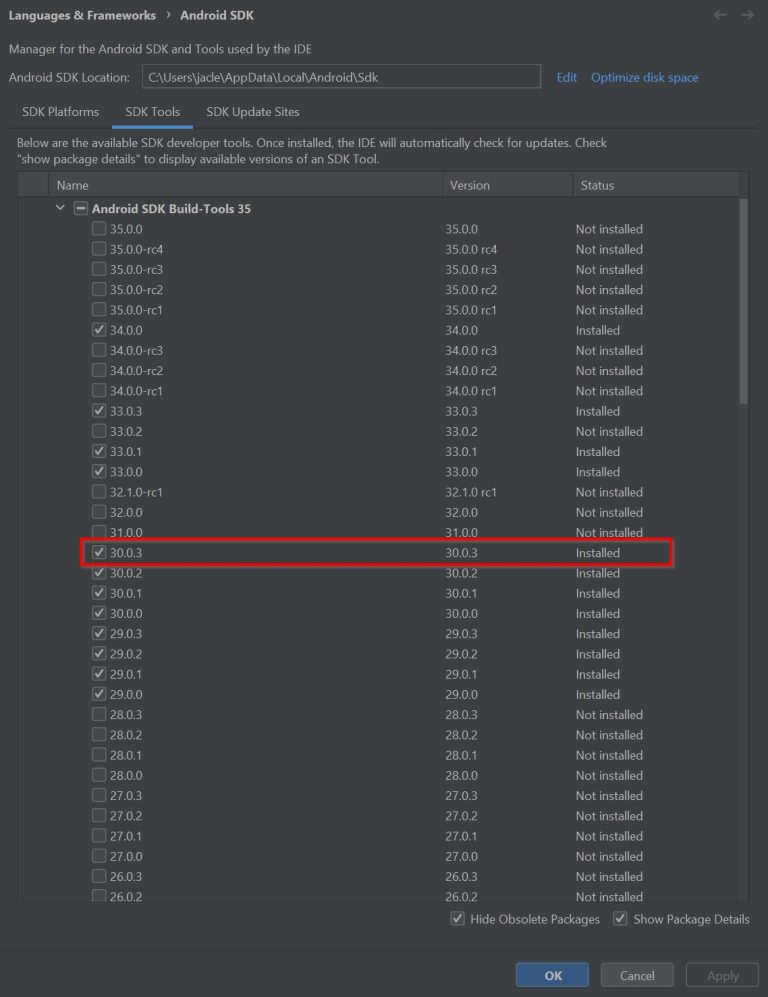
Then copy the build tools from:
%LOCALAPPDATA%\Android\Sdk\build-tools\30.0.3
Paste that into File Explorer's address bar and it'll take you straight to your own folder, no need to swap in your username.
To:
C:\Program Files\Unity\Hub\Editor\2022.3.21f1\Editor\Data\PlaybackEngines\AndroidPlayer\SDK\build-tools\30.0.3
Help maintaining an existing app
If build failures are blocking an update, our mobile app and game maintenance service covers Unity dependency checks, SDK updates and release support. Share the build log and Unity version when you enquire.